
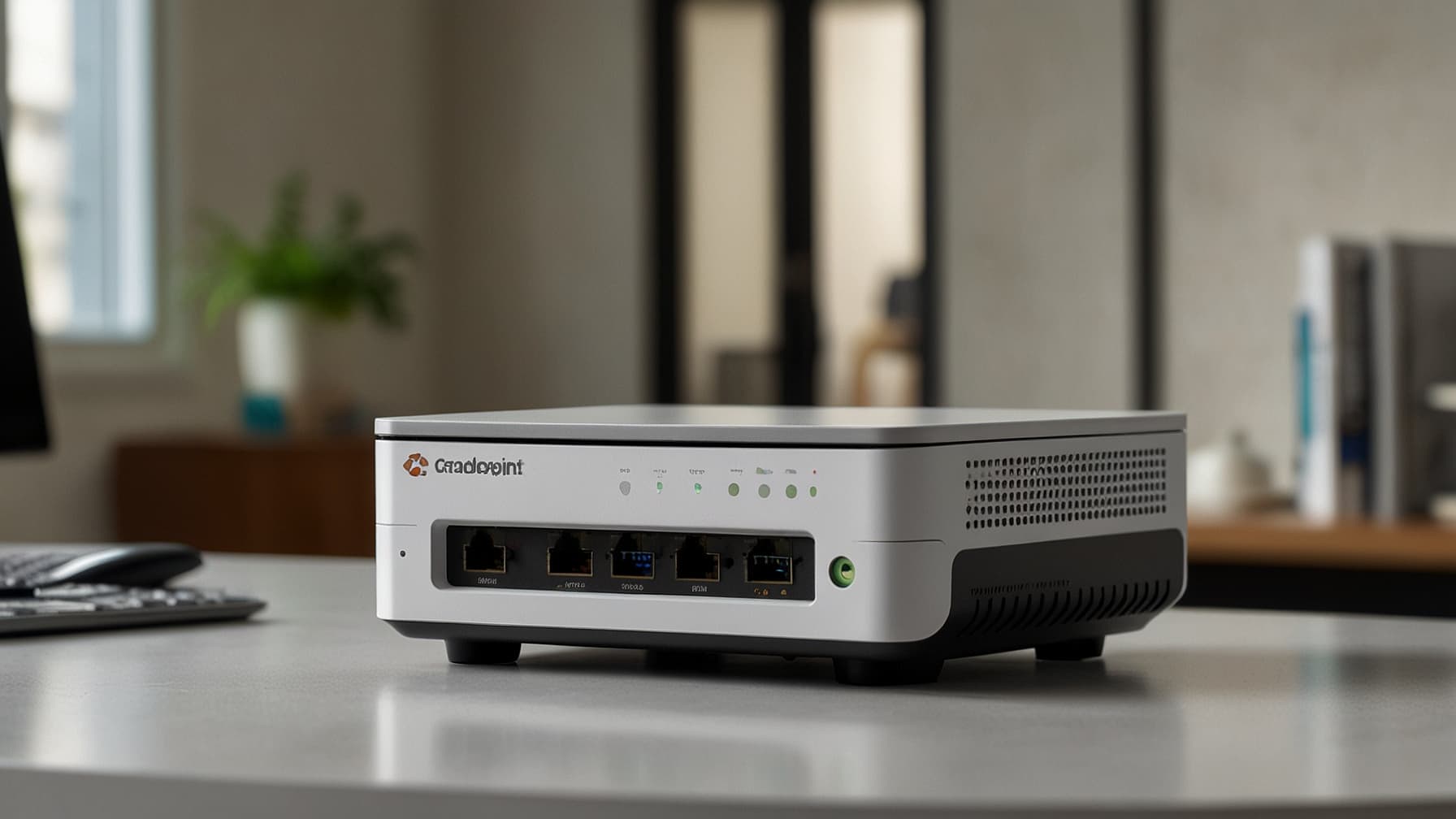
How to Manually Reset Cradlepoint E300 (Complete Step-by-Step Guide)
If your network connection is unstable, the router is not responding, or you’ve forgotten the admin credentials, learning how to manually reset Cradlepoint E300 can save you time and frustration. A manual (factory) reset restores the router to its default settings and is often the best solution for serious configuration or connectivity problems.
In this detailed guide, you’ll learn when, why, and how to manually reset a Cradlepoint E300, what happens after the reset, how to reconfigure the router, and how to fix common issues that may appear afterward. Whether you’re a beginner or a network administrator, this article will walk you through everything step by step.
What Is the Cradlepoint E300 Router?
The Cradlepoint E300 is a professional-grade network router developed by Cradlepoint, designed mainly for business and enterprise environments. It is widely used for:
- LTE and wired WAN connectivity
- Network failover and redundancy
- Remote site networking
- Secure and reliable internet access
Because the E300 is often used in mission-critical setups, knowing how to properly reset it is essential when troubleshooting or redeploying the device.
Why You May Need to Manually Reset Cradlepoint E300
There are several situations where a manual reset becomes necessary. Below are the most common reasons:
- Forgotten admin username or password
- Router web interface not opening
- Internet connection issues that persist after reboot
- Incorrect or broken configuration changes
- Firmware update failure or corruption
- Router freezing or becoming unresponsive
- Preparing the router for resale or new deployment
- Network instability caused by misconfigured rules
A manual reset is usually the last troubleshooting step after a normal reboot fails.
Important Things to Know Before Manually Resetting Cradlepoint E300
Before you proceed, keep these critical points in mind:
- A manual reset erases all custom settings
- Admin username and password return to default
- WAN, LAN, APN, and firewall rules are deleted
- VPN and security configurations are removed
- You may need to reconfigure LTE/SIM settings
- The process takes a few minutes, not seconds
⚠️ Tip: If you still have access to the admin panel, always back up your configuration before resetting.
Soft Reset vs Manual (Hard) Reset
Understanding the difference helps you choose the right option.
Soft Reset (Reboot)
- Simply restarts the router
- Does not delete settings
- Fixes temporary glitches
- Recommended first step
Manual (Factory) Reset
- Restores factory default settings
- Deletes all configurations
- Fixes serious software or configuration issues
- Used when login access is lost, or the router is unstable
If a reboot doesn’t work, a manual reset is the correct solution.
How to Manually Reset Cradlepoint E300 (Step-by-Step)

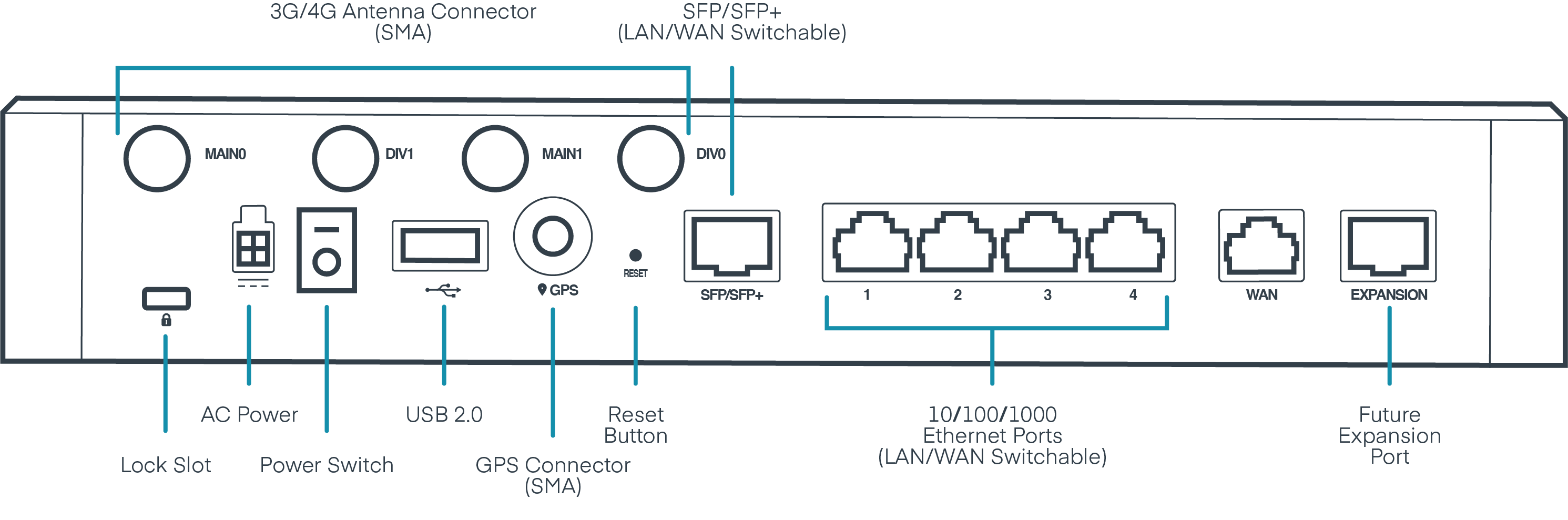

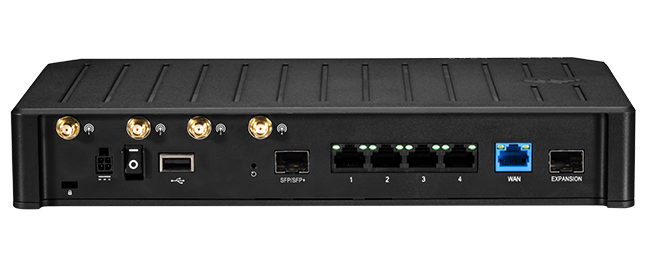
Follow these steps carefully to manually reset Cradlepoint E300:
Step 1: Power On the Router
Make sure the Cradlepoint E300 is plugged in and powered on. The LED lights should be active.
Step 2: Locate the Reset Button
On the back or underside of the router, you’ll find a small reset pinhole button near the Ethernet ports.
Step 3: Use a Paperclip or Pin
Straighten a paperclip or use a SIM-eject pin to press the reset button.
Step 4: Press and Hold
Press and hold the reset button for 10–15 seconds.
Do not release it too early.
Step 5: Watch the LED Indicators
The LED lights will blink or turn off briefly, indicating that the reset process has started.
Step 6: Release and Wait
Release the button and wait 2–5 minutes while the router reboots and restores factory settings.
✅ Once the LEDs stabilize, the manual reset is complete.
What Happens After a Manual Reset?
After manually resetting Cradlepoint E300:
- All configurations are wiped
- Router returns to factory defaults
- The default IP address is restored
- Default login credentials are activated
- Custom firewall and routing rules are removed
This is normal behavior and means the reset was successful.
Default Settings After Manual Reset
Here are the common default values you’ll use to log back in:
- Default IP Address:
192.168.0.1(or similar) - Login URL: http://192.168.0.1
- Default Username: admin
- Default Password: (printed on router label or documentation)
- DHCP: Enabled
- Wi-Fi: Disabled or default SSID (model dependent)
Always check the label on your specific unit for exact credentials.
How to Reconfigure Cradlepoint E300 After Manual Reset
Once reset, follow these steps to restore functionality:
1. Connect via Ethernet
Plug your computer into the router using an Ethernet cable.
2. Access the Admin Panel
Open a browser and enter the default IP address.
3. Log In
Use the default admin credentials.
4. Change Admin Password
For security, set a strong new password immediately.
5. Configure Internet (WAN/LTE)
- Insert SIM card (if using LTE)
- Enter APN details provided by your carrier
- Configure WAN priority and failover
6. Set LAN and DHCP
Adjust IP range and network rules if needed.
7. Configure Wi-Fi (If Applicable)
Enable wireless settings and secure them with WPA2/WPA3.
8. Save and Apply Settings
Reboot the router once the configuration is complete.
Common Problems After Manually Resetting Cradlepoint E300
Router Not Booting
- Ensure a stable power supply
- Wait at least 5 minutes
- Try reset again
Cannot Access Admin Panel
- Check Ethernet connection
- Disable VPN on your computer
- Try a different browser
No Internet Connection
- Re-enter APN settings
- Confirm SIM is active
- Check WAN priority settings
SIM Not Detected
- Reinsert SIM card
- Restart router
- Confirm SIM compatibility
Abnormal LED Behavior
- Continuous blinking may indicate firmware loading
- Perform reset again if LEDs never stabilize
Understanding LED Lights After Reset
LED indicators help diagnose router status:
- Power LED (Solid): Router is on
- Blinking Power LED: Booting or updating
- Network LED: Active internet connection
- Signal LEDs: LTE signal strength
Refer to the official documentation for exact LED meanings.
Frequently Asked Questions (FAQs)
How long does it take to manually reset Cradlepoint E300?
Usually 2–5 minutes, including reboot time.
Does manual reset delete firmware?
No. Firmware remains installed; only settings are erased.
Can I reset Cradlepoint E300 without the reset button?
Only if you have admin access. Otherwise, the reset button is required.
Will a manual reset fix firmware update issues?
Yes, in many cases it resolves post-update configuration problems.
Is it safe to manually reset the Cradlepoint E300?
Yes, as long as power is not interrupted during the process.
How often should I reset my router?
Only when necessary. Frequent factory resets are not recommended.
Safety Tips & Best Practices
- Avoid unnecessary factory resets
- Keep firmware updated
- Save configuration backups
- Use surge protection
- Store admin credentials securely
Following these practices ensures long-term stability and security.
Conclusion
Knowing how to manually reset Cradlepoint E300 is an essential skill for anyone managing this router. A manual reset is a powerful troubleshooting method that can resolve login issues, network failures, and configuration errors when all else fails.
By carefully following the steps outlined in this guide and properly reconfiguring the router afterward, you can restore stable connectivity and keep your network running smoothly. Always reset responsibly, back up your settings when possible, and apply best practices for long-term performance.